

I’ve gone through a lot of Google Ads accounts over the years, and one thing keeps standing out. many advertisers hardly touch automation. People spend hours every week checking budgets manually, pausing keywords that aren’t converting, and hunting for broken landing pages – and most of the time, they don’t even realise Google already built tools to do this for them.
There are three of these tools tucked away under Tools > Bulk actions in the Google Ads interface: Automated Rules, Ads Scripts, and Solutions. Once you know what each one does, it’s hard to go back to doing everything by hand. Here’s a breakdown of all three, what they’re good for, and how you can actually start using them.
Why automate your Google Ads account?
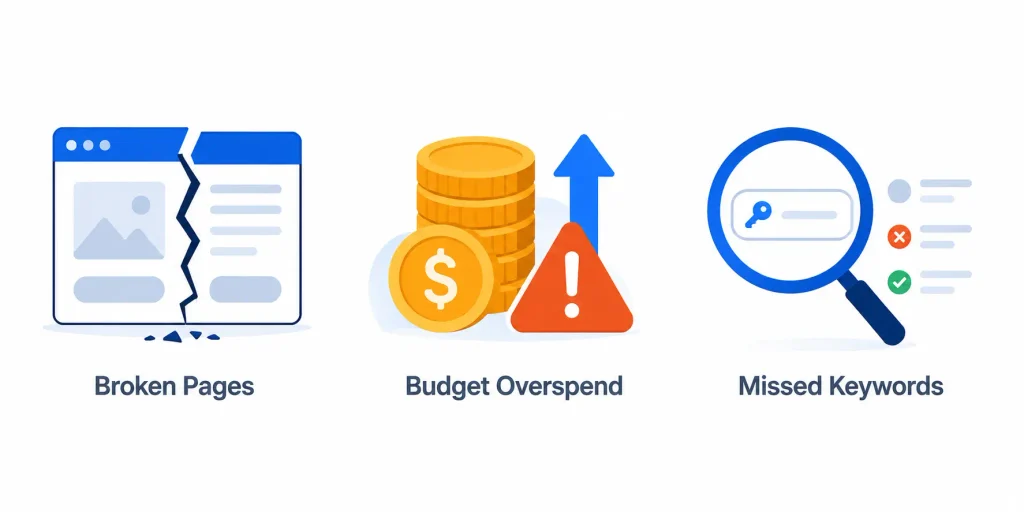
Managing campaigns manually means you’re only ever as fast as the last time you logged in. You are only ever as fast as the previous time you signed in while managing campaigns manually. Landing pages break without anybody knowing, budgets go past their limit overnight, and a keyword can generate clicks but no conversions for days before it grabs your attention.
Automation fixes that by watching your account around the clock and either acting on its own or pinging you the moment something’s off.
Google Ads gives you three ways to do this, and they each suit a different kind of problem:
- Automated Rules – no coding, just conditions and actions
- Ads Scripts – custom, code-based automation built on Google Apps Script
- Solutions – ready-made script templates you can turn on in a couple of clicks
Let’s go through each one properly.
1. Automated Rules: automation without touching a single line of code
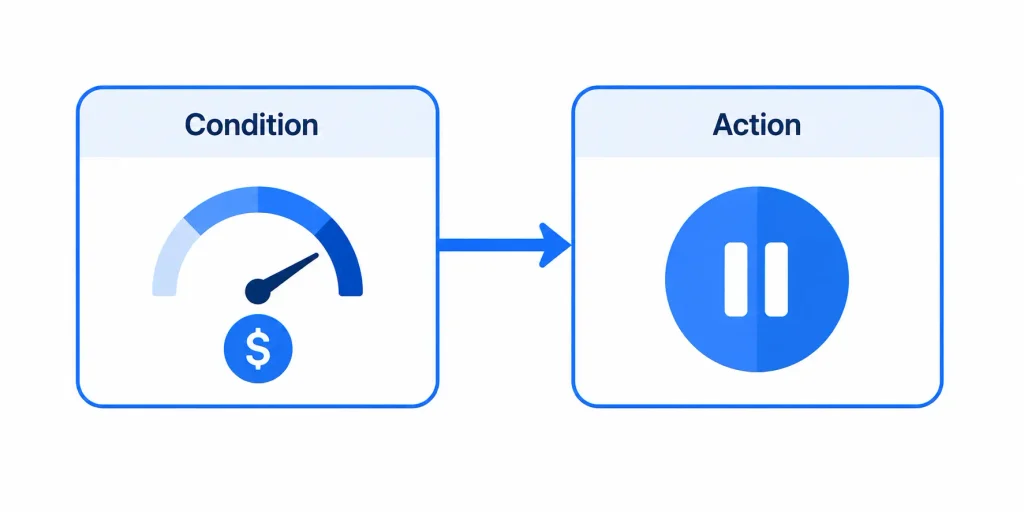
You’ll find this under Tools > Bulk actions > Rules. This is the simplest of the three -you don’t need to know any code; you just tell Google the condition and the action, and it takes care of the rest.
There are rules available at several levels, including:
- Campaign rules
- Ad group rules
- Keyword rules
- Ad rules
- Display keyword rules
- Topic rules
- Placement rules
- Audience rules
- Age range rules
- Gender rules
- Parental status rules
- Income range rules
- Asset group rules
- Content criterion rules
A few ways people actually use this
- Budget control: pause a campaign automatically once it hits its daily budget, then let it start the next day again without you doing anything.
- Weekend scheduling: pause campaigns on Saturday and Sunday (or any day that just doesn’t convert for you) and have them resume automatically on weekdays.
- Bid adjustments: raise or lower bids once performance crosses a threshold you’ve set.
- Status changes: turn ads, keywords, or ad groups on or off based on how they’re performing, without logging in every single day to check.
Here’s a simple one to try: set a rule where if a campaign’s cost goes above $50 in a day, it pauses. Then add a second rule that turns it back on at midnight. That’s it -you’ve just built a self-resetting daily budget cap, and you didn’t write a single line of code.
Since this runs natively inside Google Ads, there’s nothing to set up externally and no cost involved. If you’ve never used it, it’s worth setting up even one rule just to see how much manual work it takes off your plate.
2. Ads Scripts: when you need more control than Rules can give you
This one lives under Tools > Bulk actions > Scripts, and it’s powered by Google Apps Script. Unlike Rules, Scripts let you write your own logic in JavaScript, so you can automate many supported Google Ads actions. just with a lot more precision than Rules can offer.
Here’s where Scripts tend to add the most value.
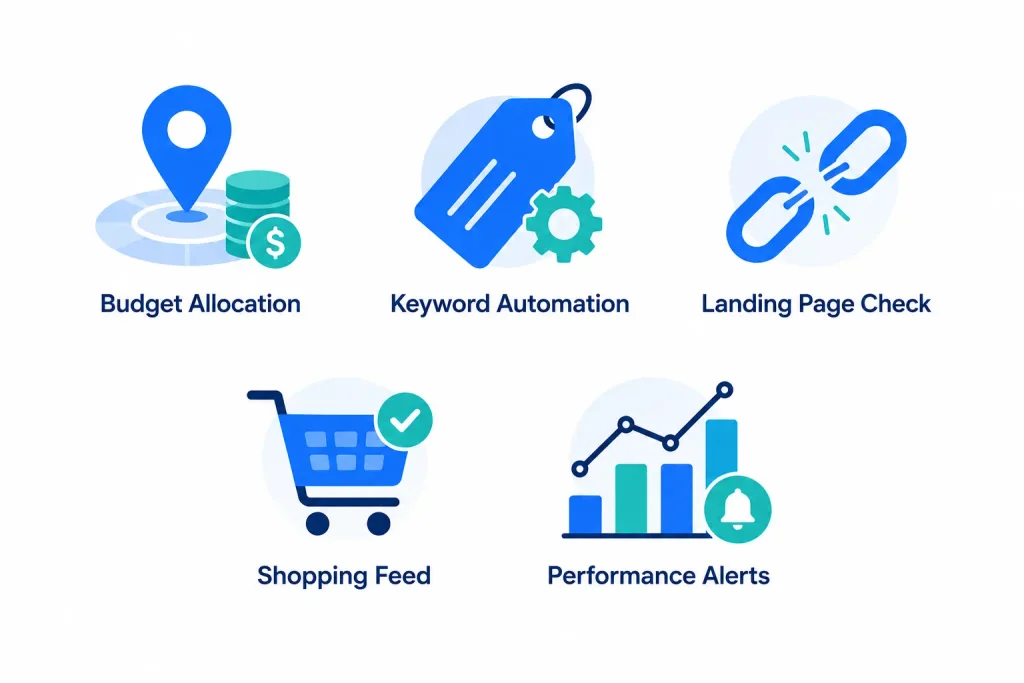
Budget allocation
You can automatically pull back spend from a city or region that’s burning budget without converting, and shift bids up in places that are actually working. This can be done at the campaign level, the city level, or really any level Google allows automation on. You can also track spend against a monthly cap and get an email the second it crosses your limit.
For example, a script could check spend and conversions by city every day. If a location has spent more than ₹5,000 over the last 7 days with nothing to show for it, the script pulls it out of targeting on its own -no manual review needed.
Keyword-level automation
Scripts are great at catching things that would otherwise take forever to spot manually -a keyword that’s suddenly spending a lot, or one that’s racked up 100+ clicks with zero conversions. You can set it up to email you the moment a keyword crosses a threshold, or even flag keywords with a dropping CTR or Quality Score. One thing worth knowing: you can’t increase budget at the keyword level in Google Ads, only bids. If a keyword is doing really well and needs more budget, It generally needs to be assigned to a separate campaign.
A practical version of this: run a script once a week that scans every keyword, and any with 100+ clicks and 0 conversions gets dropped into a Google Sheet along with an email alert. That’s basically a ready-made negative keyword list, and you didn’t have to pull a single report yourself.
Landing page monitoring
Broken landing pages can quietly hurt campaign performance for days before anyone notices. a script can monitor for 404 errors, 500 errors, and redirect issues, then send you an email when something goes wrong. This allows you to identify and fix landing page problems quickly before they lead to lost traffic, conversions, or ad performance.
Shopping and Merchant Center
For Shopping campaigns, you can filter products by which ones are getting zero impressions (often a sign something’s wrong with the feed or a disapproval) and which ones are converting well and deserve more attention. All of this data technically exists in manual reports already; however, manually checking it across hundreds of products is very time-consuming. A script turns that into a one-click report.
Performance monitoring -CPA, ROAS, CPC
If your account is focused on conversions, setting up this automation could be incredibly valuable. You can receive alerts when your Cost Per Acquisition (CPA) either rises or falls sharply, when your Return on Ad Spend (ROAS) drops below your target, or when the Cost Per Click (CPC) changes at the keyword level.
None of these is new metrics -most people already check them manually. The real benefit of scripting them is cutting down on human error. Instead of relying on remembering to log in and check, the alert comes to you, and you can go straight into the campaign for a closer look. That’s real time saved, every week.
Here’s an example: a script compares each campaign’s CPA over the last 7 days to the 7 days before that. If CPA has jumped more than 20%, it emails you naming the campaign -so you catch it before it eats into your budget.
Agency-level scripts
If you’re managing multiple client accounts, most of this logic can be adapted and reused across accounts instead of building it from scratch each time. That turns a one-off script into something that scales across your entire manager account.
Worth keeping in mind these are just the basics. There’s a lot more you can build depending on what your account actually needs; the examples above are meant as a starting point, not the full list.
3. Solutions: pre-built scripts you can turn on in minutes
This one’s under Tools > Bulk actions > Solutions, and honestly it’s the easiest way into automation if writing a script from scratch isn’t something you want to deal with. Google’s already built a handful of templates you can activate in a couple of clicks:
| Solution | What It Does |
| Account summary | Generates a performance report for your Google Ads account |
| Ad performance | Creates a Google Spreadsheet with distribution charts showing how your ads are performing |
| Account anomaly detector | Sends an email alert when your account’s performance stats deviate significantly from normal |
| Link checker | Checks that URLs in your ads and keywords don’t lead to “page not found” or other errors |
| Flexible budgets | Dynamically adjusts campaign budgets daily based on a custom distribution scheme |
| Common negative list | Simplifies management of shared negative keyword lists across campaigns |
If you like the idea of scripting -catching anomalies, checking links, flexible budgeting -but don’t want to write code, this is where to start.
So which one should you actually use?
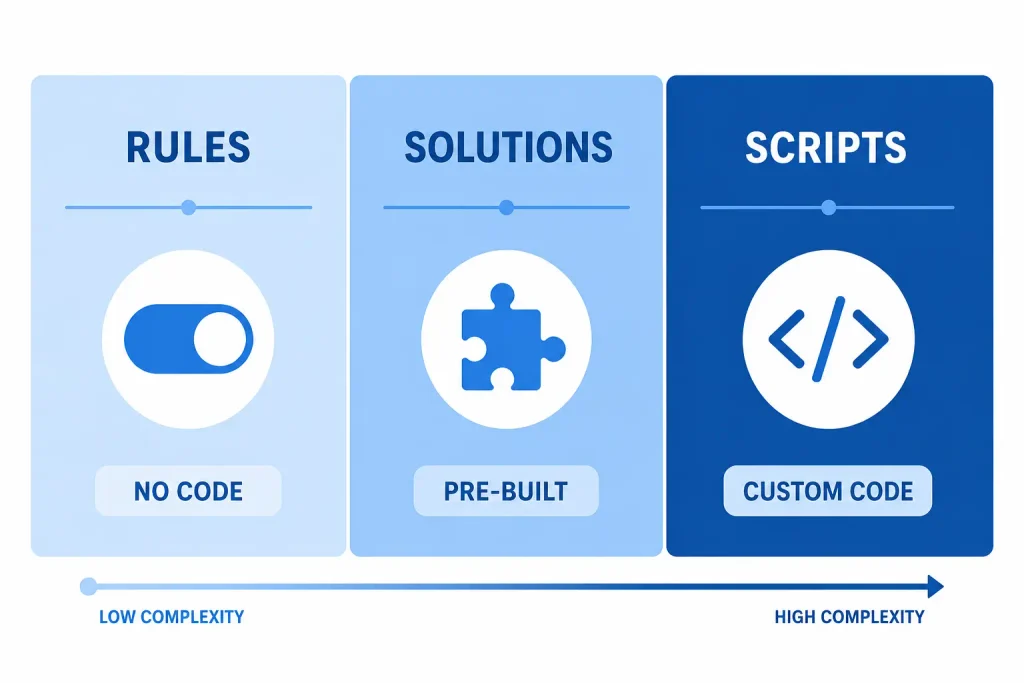
| Feature | Coding Required | Flexibility | Best For |
| Automated Rules | None | Basic condition-based logic | Budget pausing, day-parting, simple bid changes |
| Solutions | None (pre-built) | Moderate, template-based | Anomaly detection, link checking, quick reporting |
| Ads Scripts | Yes (Apps Script/JavaScript) | Fully customizable | Complex, multi-condition automation at scale |
If you’re just starting out, begin with Rules for the simple stuff -budgets, scheduling. Try a Solution or two for anomaly detection and reporting. And once you hit a problem that’s specific to your account and keeps repeating, that’s when it’s worth building a custom Script.
Final thoughts
Rules, Scripts, and Solutions are probably the most underused part of Google Ads, and it’s a shame, because they solve exactly the problems that eat up the most time -budget checks, keyword cleanup, broken landing pages, performance alerts. You don’t need to build all of this at once. Setting up even one rule or turning on one Solution today already starts saving you time and catching mistakes you’d otherwise miss.
If you haven’t opened Tools > Bulk actions in your account yet, that’s genuinely the best place to start.
“Explore the full Google Ads Scripts documentation → developers.google.com/google-ads/scripts
Vikram Prajapati

PPC Team Lead specializing in Google Ads, GA4, and GTM tracking. Experienced in managing $50K+ monthly ad spend, leading PPC teams, automating campaigns, and driving ROI-focused growth across e-commerce and lead generation.


Contact Form Popup
Boost Your Business Now
This will close in 0 seconds
apply now popup
Apply Now
This will close in 0 seconds
Get free audit popup
Get Free Google Ads Account Audit Worth $999
This will close in 0 seconds
Contact page Form Popup
Contact Us
This will close in 0 seconds